Home › Business

 US
US
1 of 1 storefronts
Content in en-US
Content in en-US
Information
Preview 2 platforms
iPhone 3 images


iPad 3 images


What’s New Version 6.0.1.27224
The Mobile App Toolbar Editor allows administrators to create custom toolbar buttons and menus for Windows applications accessed from a mobile device.
With Mobile Sense technology, Windows applications accessed from mobile devices behave and respond more like mobile apps. For example, the device’s onscreen keyboard will open automatically whenever an application can receive text input.
Resolution scaling allows users to change the resolution width and height to best fit their device. Resolution scaling improves client usability and reduces bandwidth on both the client and the host.
Description
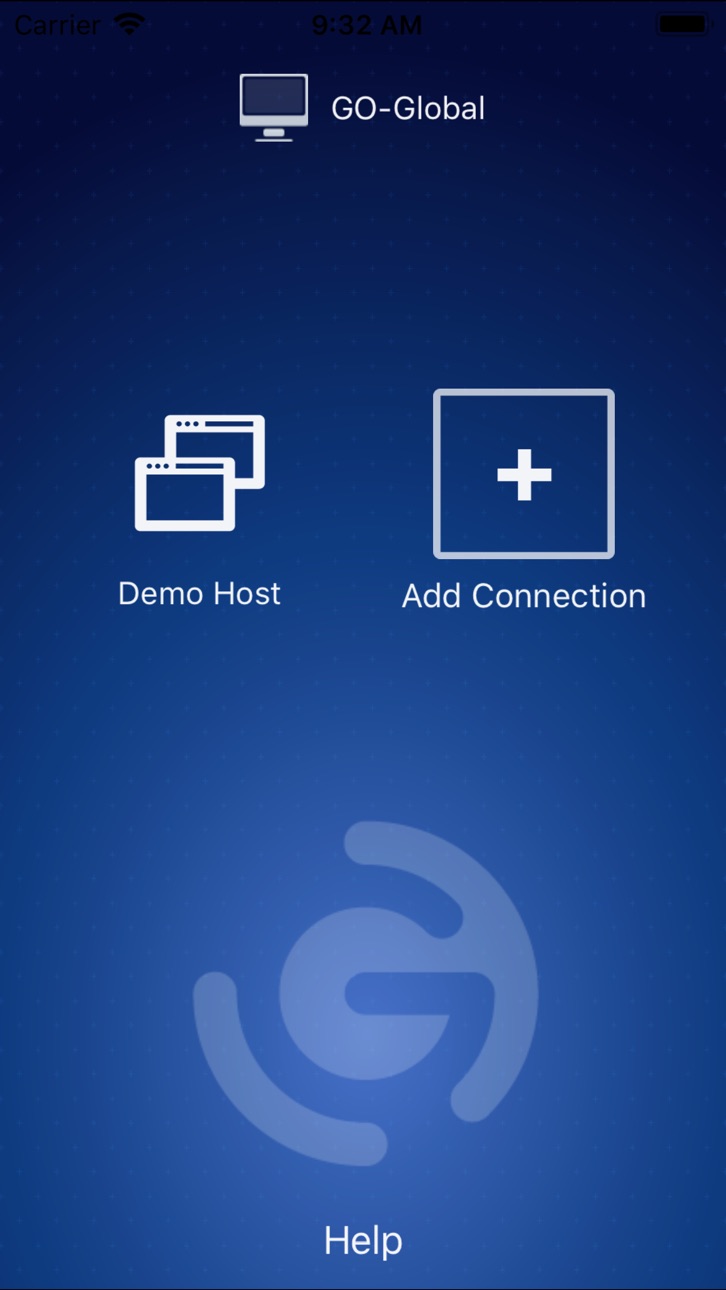
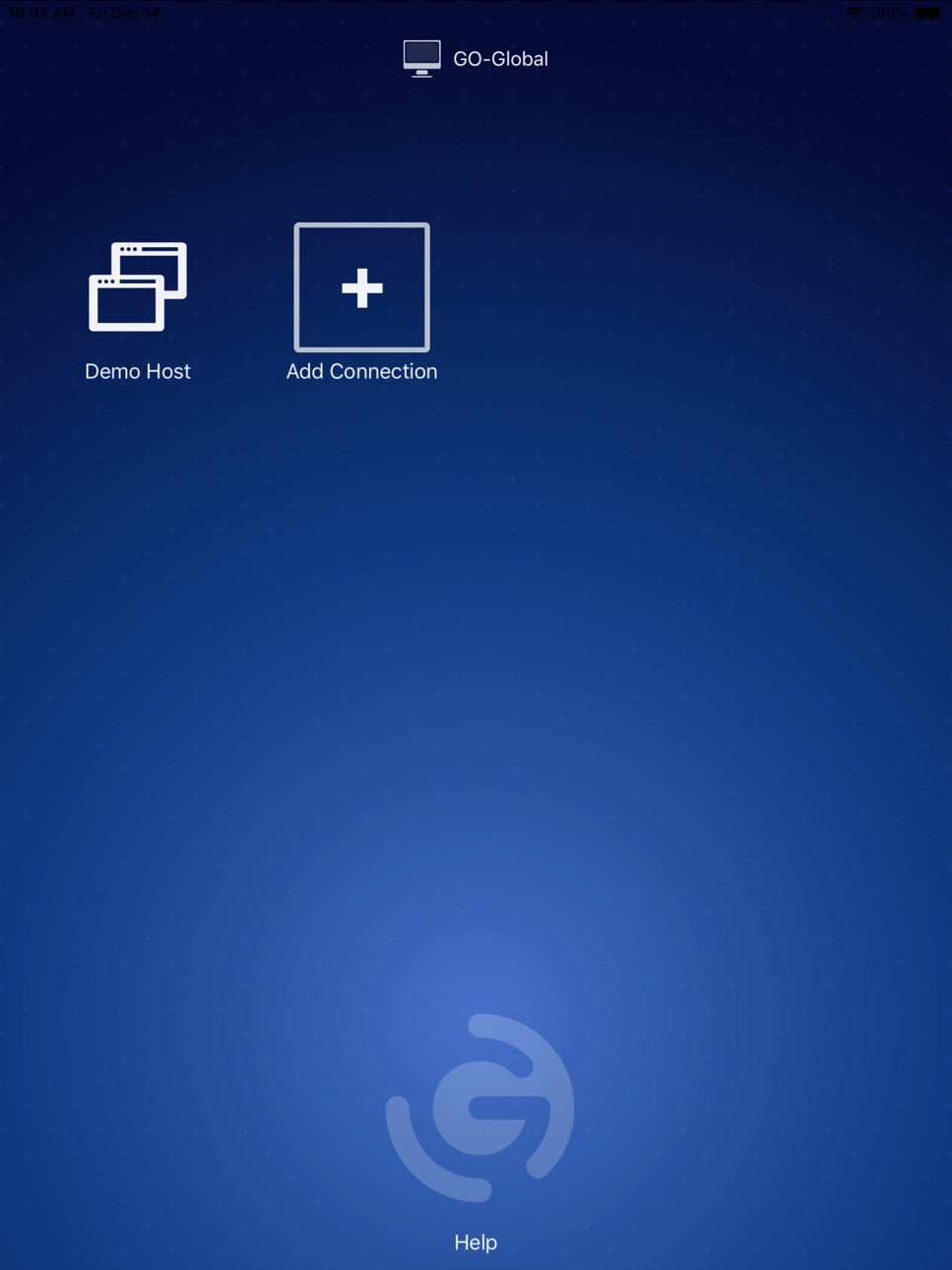
The GO-Global App is a powerful, yet easy-to-use remote application delivery app that provides excellent Windows application performance and an increased level of usability on iPads, iPhones, and the iPod touch.
GO-Global customers can download the free GO-Global App to connect to GO-Global hosts and run Windows applications remotely from their iOS device. Applications appear as though they were running locally, retaining all features and functions.
If you are not an existing GO-Global customer with access to a host, you can still evaluate the GO-Global App. Simply download it to your iOS device and connect to GraphOn’s free demo server to access several popular Windows applications. No sign-up or registration required.
The GO-Global App maintains a high degree of usability by automatically touch-enabling Windows applications. Intuitive, multi-touch gestures allow users to interact naturally with applications running on the host, even though the device lacks a mouse and keyboard. The Auto-Zoom feature detects the section of the screen currently active in the application, and automatically zooms-in on that area, making it easier to tap user interface elements. The device’s onscreen keyboard opens automatically whenever an application can receive text input.
GO-Global uses GraphOn’s patented, high-performance RapidX protocol, providing fast and seamless access anywhere, even over low-bandwidth connections. It provides SSL security (up to 256-bit AES) and IPv6 support. And it eliminates the need for Citrix or Microsoft Remote Desktop Services (RDS).
For more information, please visit GraphOn’s website at GraphOn.com.
Accessibility
ipadiphonemacrealityDevicetvoswatch
Version history 19 versions
Build 829651874v6.0.1.272242018-12-18 00:58:27
The Mobile App Toolbar Editor allows administrators to create custom toolbar buttons and menus for Windows applications accessed from a mobile device.
With Mobile Sense technology, Windows applications accessed from mobile devices behave and respond more like mobile apps. For example, the device’s onscreen keyboard will open automatically whenever an application can receive text input.
Resolution scaling allows users to change the resolution width and height to best fit their device. Resolution scaling improves client usability and reduces bandwidth on both the client and the host.
Build 829481540v6.0.1.272232018-12-12 19:59:56
The Mobile App Toolbar Editor allows administrators to create custom toolbar buttons and menus for Windows applications accessed from a mobile device.
With Mobile Sense technology, Windows applications accessed from mobile devices behave and respond more like mobile apps. For example, the device’s onscreen keyboard will open automatically whenever an application can receive text input.
Resolution scaling allows users to change the resolution width and height to best fit their device. Resolution scaling improves client usability and reduces bandwidth on both the client and the host.
Build 825296031v5.0.2.254492017-12-15 21:59:34
Fixed an issue that caused the keyboard to cover the Add Connection and Edit Connection dialogs on iOS 11.
Build 817159175v5.0.1.230482016-04-27 02:26:52
Bug fixes.
Build 816929922v5.0.1.229982016-04-07 01:50:53
Bug fixes.
64-bit device support.
Task management.
Usability improvements.
New user interface.
hopTo MAX for GO-Global support.
Build 812620354v5.0.1.229312016-03-30 22:46:54
64-bit device support.
Task management.
Usability improvements.
New user interface.
hopTo MAX for GO-Global support.
Build 812401678v5.0.0.216972015-05-28 13:17:47
Client Logging
Desktop support
iOS 8 Printing support
General bug fixes
Build 620093082v4.8.2.207372014-08-11 21:35:58
bug fixes
Build 77322670v4.8.0.187162013-10-04 18:32:08
Support for iOS 7.
Build 15500339v4.7.0.172572013-06-14 13:24:44
Minor bug fixes.
Build 14804823v4.6.0.160562013-04-03 00:53:49
Client printing is supported on devices running iOS 5.1 or newer. Printers must be AirPrint compatible.
Miscellaneous bug fixes.
Build 13430433v4.5.0.149662013-01-16 22:10:20
bug fixes
Build 7634710v4.1.3.123322012-04-27 16:53:45
Added support for iPhone and iPod Touch.
Build 7037050v4.1.1.120952012-03-20 16:20:24
Added support for iOS 5.1.
Build 6751612v4.1.1.120042012-03-02 01:45:53
Support for right mouse button drag operations
Some Windows applications provide features that are accessed by clicking the right mouse button and dragging the mouse. On the iPad, right button drag operations are supported as follows:
With two fingers, tap and hold the item you want to drag. Begin dragging your fingers on the screen. At this point, an on-screen indicator will appear indicating that a drag operation is in progress. Without lifting your fingers, continue dragging the item to its desired location.
Build 6226964v4.1.1.119192012-02-08 15:23:17
NEW APPLICATION SETTINGS
The GO-Global entry under Settings supports the following options:
Pin Toolbar: When the Pin Toolbar option is set to ON, the toolbar will be displayed when the iPad Client is started.
Auto Connect: When Auto Connect is ON, the client automatically connects to the last host the user accessed.
Auto Launch: If an application is specified in Auto Launch, GO-Global automatically starts the application when the client connects to a host, bypassing the Program Window. If an application name is entered in the Auto Launch option of a Favorite Host, that application will be launched upon connection, overriding the global Auto Launch setting.
Build 5363261v4.1.1.115612011-12-12 16:25:01
Issues Fixed
Issues with Japanese Kanji characters on the iPad Client.
Caps lock key get "stuck" when pressed.
iPad client fails without internet connection.
Japanese translator feature does not show up when selecting Japanese characters. This bug is fixed for iOS 5 only.
Cannot connect when SSL security is enabled.
When you close an application after Auto Launching it, the application hangs and eventually the session disconnects.
The "Would you like to try to reconnect?" dialog does not have a Yes or OK button.
Foreign keyboards are now supported. GO-Global 4 Host Version 4.0.1.10784 (Patch 3) must be installed in
order for this fix to work.
Support for branding the iPad Client has been added.
The GO-Global iPad Client now adds an extra row of keys to the top of the soft keyboard. This new row includes ctrl, shift, alt, tab, esc, home, end, insert, delete, etc. For example, to copy and paste text, highlight the text and press the ctrl + c button to copy it. Then press the ctrl + v button to paste the text. To see all the special keys, users can scroll the keys on the right side of the top row by sliding their finger to the left and right over the keys.
Build 4651815v4.1.1.112492011-10-25 23:12:43
Issues Fixed
Caps lock key get "stuck" when pressed.
iPad client fails without internet connection.
Japanese translator feature does not show up when selecting Japanese characters. This bug is fixed for iOS 5 only.
Cannot connect when SSL security is enabled.
When you close an application after Auto Launching it, the application hangs and eventually the session disconnects.
The "Would you like to try to reconnect?" dialog does not have a Yes or OK button.
Foreign keyboards are now supported. GO-Global 4 Host Version 4.0.1.10784 (Patch 3) must be installed in
order for this fix to work.
Support for branding the iPad Client has been added.
The GO-Global iPad Client now adds an extra row of keys to the top of the soft keyboard. This new row includes ctrl, shift, alt, tab, esc, home, end, insert, delete, etc. For example, to copy and paste text, highlight the text and press the ctrl + c button to copy it. Then press the ctrl + v button to paste the text. To see all the special keys, users can scroll the keys on the right side of the top row by sliding their finger to the left and right over the keys.
Build 3785683v4.1.0.105332011-06-13 19:33:30
No pricing data captured yet — comparisons appear once the app has paid storefronts or in-app purchases.
Availability 1 of 1 storefronts
| Region | Language | Price | Ratings | Avg | Version |
|---|---|---|---|---|---|
| US | en-US | Free | 4 | 3.5 | 6.0.1.27224 |
Change log 22 changes · US
✎
releaseNotes updated
The Mobile App Toolbar Editor allows administrators to create custom toolbar buttons and menus for Windows applications accessed from a mobile device.
With Mob
✎
description updated
The GO-Global App is a powerful, yet easy-to-use remote application delivery app that provides excellent Windows application performance and an increased level
✎
name updated
GO-Global
◆
Version 6.0.1.27224 released
The Mobile App Toolbar Editor allows administrators to create custom toolbar buttons and menus for Windows applications accessed from a mobile device.
With Mobile Sense technology, Windows applications accessed from mobile devices behave a
◆
Version 6.0.1.27223 released
The Mobile App Toolbar Editor allows administrators to create custom toolbar buttons and menus for Windows applications accessed from a mobile device.
With Mobile Sense technology, Windows applications accessed from mobile devices behave a
◆
Version 5.0.2.25449 released
Fixed an issue that caused the keyboard to cover the Add Connection and Edit Connection dialogs on iOS 11.
◆
Version 5.0.1.23048 released
Bug fixes.
◆
Version 5.0.1.22998 released
Bug fixes.
64-bit device support.
Task management.
Usability improvements.
New user interface.
hopTo MAX for GO-Global support.
◆
Version 5.0.1.22931 released
64-bit device support.
Task management.
Usability improvements.
New user interface.
hopTo MAX for GO-Global support.
◆
Version 5.0.0.21697 released
Client Logging
Desktop support
iOS 8 Printing support
General bug fixes
◆
Version 4.8.2.20737 released
bug fixes
◆
Version 4.8.0.18716 released
Support for iOS 7.
◆
Version 4.7.0.17257 released
Minor bug fixes.
◆
Version 4.6.0.16056 released
Client printing is supported on devices running iOS 5.1 or newer. Printers must be AirPrint compatible.
Miscellaneous bug fixes.
◆
Version 4.5.0.14966 released
bug fixes
◆
Version 4.1.3.12332 released
Added support for iPhone and iPod Touch.
◆
Version 4.1.1.12095 released
Added support for iOS 5.1.
◆
Version 4.1.1.12004 released
Support for right mouse button drag operations
Some Windows applications provide features that are accessed by clicking the right mouse button and dragging the mouse. On the iPad, right button drag operations are supported as follows:
Wit
◆
Version 4.1.1.11919 released
NEW APPLICATION SETTINGS
The GO-Global entry under Settings supports the following options:
Pin Toolbar: When the Pin Toolbar option is set to ON, the toolbar will be displayed when the iPad Client is started.
Auto Connect: When Auto Co
◆
Version 4.1.1.11561 released
Issues Fixed
Issues with Japanese Kanji characters on the iPad Client.
Caps lock key get "stuck" when pressed.
iPad client fails without internet connection.
Japanese translator feature does not show up when selecting Japanese charac
◆
Version 4.1.1.11249 released
Issues Fixed
Caps lock key get "stuck" when pressed.
iPad client fails without internet connection.
Japanese translator feature does not show up when selecting Japanese characters. This bug is fixed for iOS 5 only.
Cannot connect when S
◆
Version 4.1.0.10533 released